R Language Service
The R language server implements the Language Server Protocol and provides a set of language analysis features such as completion, providing function signatures, extended function documentation, locating function implementations, occurrences of a symbol or object, and code diagnostics and formatting. The R language server statically analyzes R code, and vscode-R interfaces with it to provide the core of this extension's functionality.
The R language server is implemented by the
languageserver package which
performs static code analysis with the latest user documents in R and Rmd
languages. Therefore, it does not rely on an active R session and thus does not
require the code to be executed.
To install the package from CRAN:
install.packages("languageserver")To experience the latest features, install the package from GitHub:
remotes::install_github("REditorSupport/languageserver")See the extension settings page for information on configuring the language server.
The R language server contributes the following features.
The R language server provides global and scope-based autocompletion. You can scroll through the suggested signatures with the arrow keys.
Global autocompletion:

Scope-based autocompletion:

The R language server currently does not provide completion for filenames; see this comment..
The R language server provides popups of function signatures and their short
descriptions as you type, which can save a few calls to help().


A larger preview of the documentation is shown when users mouse over R symbols:

The language server provides code diagnostics through the lintr package in R. See here for configuration.

The language server provides code formatting through the
styler package in R. See
here
for configuration.


Symbol renaming through the language server allows you to group renaming actions together, letting you refactor code more easily and discard a change on the fly if need be.

When the cursor is inside of a symbol, all occurrences of that symbol within the document are highlighted.

You can expand selections through Shift+Alt+RightArrow. Selections are
expanded in steps, following the boundaries of each containing R expression.

The R language server informs VSCode of code sections, or blocks of code that form coherent R expressions, which can be navigated through the outline or the panel header.

Sections can also be folded, allowing users to organize the current editor:

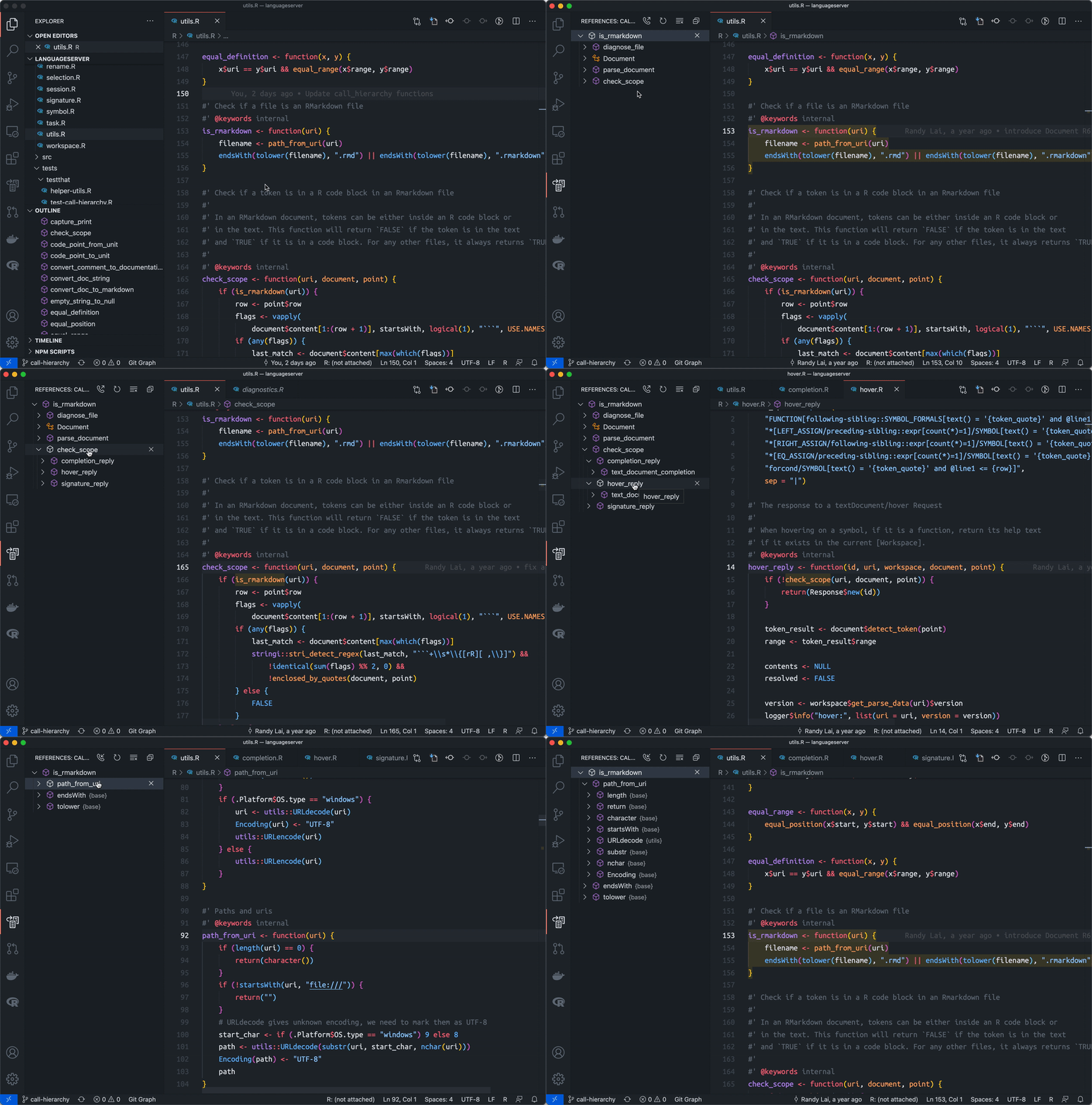
The R language server's static analysis also allows users to see the call sequence and hierarchy within an R expression.
Users can navigate through the document outline or search for symbols by
prepending an @ symbol in the search bar.

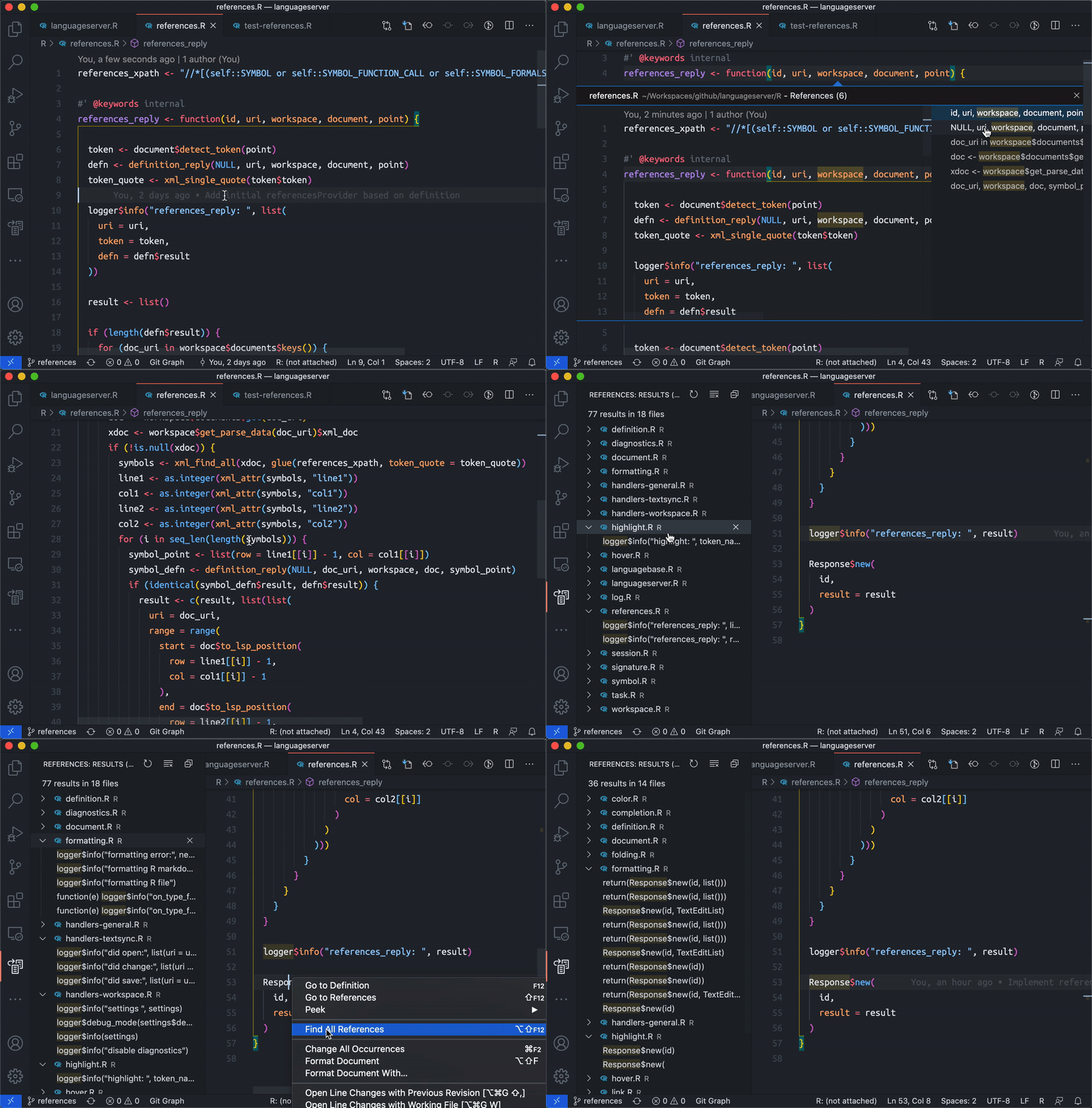
Ctrl+Clicking on a user-created R object, pressing Shift+F12 while the
cursor is focused on any object, or right-clicking and then selecting
Go To References will open a popup showing all of the uses of the object
within the current document.
Ctrl+Click on a file path takes the user to the referenced document.

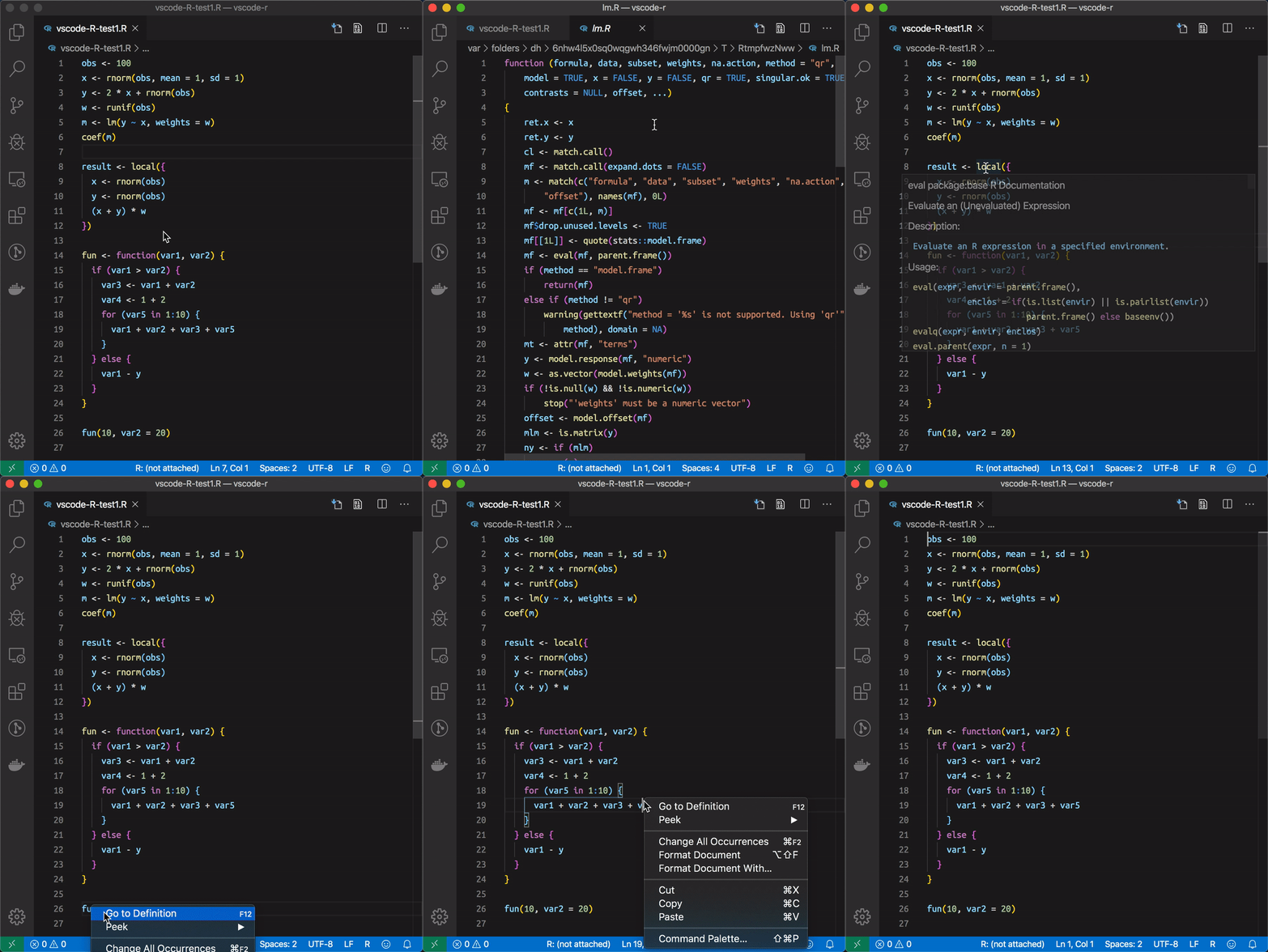
Ctrl+Clicking on an R symbol, pressing F12 while the cursor is focused on a
symbol, or right-clicking and then selecting Go To Definition will bring up a
function's implementation.
Strings of text that are recognized as R colors are rendered with a color decoration. Hovering over the decoration brings out a color picker popup that can be used to adjust the referenced color.
