English | 日本語 | Español (Latinoamérica)
Azure Maps provider for the MapConductor React SDK.
Wraps the Azure Maps Web SDK
(atlas) behind MapConductor's provider-agnostic map API, so the same
MapConductor components (markers, circles, polylines, polygons, ground images,
raster layers, info bubbles, camera sync) render on Azure Maps.
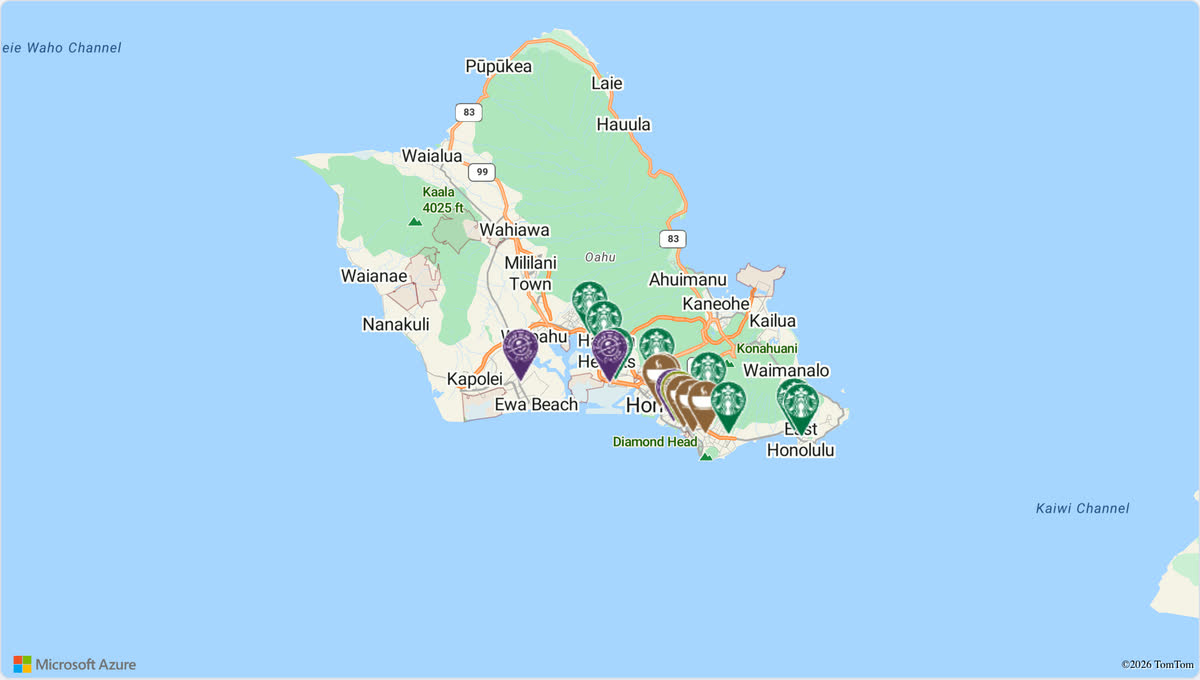
Open it in the live demo: the same store map runs on every provider, and the page switches between them. The code, cut down to three stores:
import { useMemo, useState } from 'react';
import {
  createGeoPoint,
  createMapCameraPosition,
  createMarkerState,
  type MarkerState,
} from '@mapconductor/js-sdk-core';
import { InfoBubble, Markers } from '@mapconductor/js-sdk-react';
import { AzureMapsDesign, AzureMapsMapView, useAzureMapsViewState } from '@mapconductor/react-for-azuremaps';
import '@mapconductor/react-for-azuremaps/style.css';

const STORES = [
  { id: 'waikiki', name: 'Waikiki', latitude: 21.2793, longitude: -157.8292 },
  { id: 'kailua', name: 'Kailua', latitude: 21.3972, longitude: -157.7394 },
  { id: 'haleiwa', name: 'Haleiwa', latitude: 21.5928, longitude: -158.1034 },
];

const INITIAL_CAMERA = createMapCameraPosition({
  position: createGeoPoint({ latitude: 21.38, longitude: -157.93 }),
  zoom: 10,
});

export default function App() {
  const mapViewState = useAzureMapsViewState({
    subscriptionKey: 'YOUR_AZURE_MAPS_SUBSCRIPTION_KEY',
    mapDesignType: AzureMapsDesign.Road,
    cameraPosition: INITIAL_CAMERA,
  });
  const [selected, setSelected] = useState<MarkerState | null>(null);
  const markers = useMemo(
    () =>
      STORES.map(store =>
        createMarkerState({
          id: store.id,
          position: createGeoPoint({ latitude: store.latitude, longitude: store.longitude }),
          extra: store,
          onClick: marker => setSelected(marker),
        }),
      ),
    [],
  );

  return (
    <div style={{ width: '100%', height: '100vh' }}>
      <AzureMapsMapView state={mapViewState} onMapClick={() => setSelected(null)}>
        <Markers states={markers} />
        {selected && (
          <InfoBubble marker={selected}>
            <strong>{(selected.extra as (typeof STORES)[number]).name}</strong>
          </InfoBubble>
        )}
      </AzureMapsMapView>
    </div>
  );
}
Replace YOUR_AZURE_MAPS_SUBSCRIPTION_KEY with your own key.
npm install @mapconductor/react-for-azuremaps@mapconductor/js-sdk-core and @mapconductor/js-sdk-react (used for markers and
other shared components) are installed automatically as dependencies. Your
code imports from both directly, so with pnpm's strict (isolated)
node_modules — or whenever you prefer to declare everything you import —
install them explicitly instead:
npm install @mapconductor/react-for-azuremaps @mapconductor/js-sdk-core @mapconductor/js-sdk-reactThe Azure Maps Web SDK (azure-maps-control) is bundled as a dependency. You
need an Azure Maps subscription key from the
Azure portal.
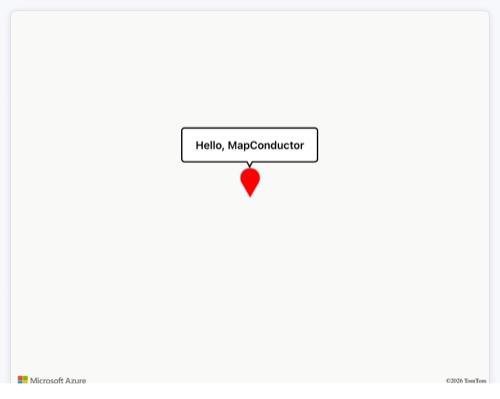
The simplest possible map app, built with MapConductor + Azure Maps: click the marker and a "Hello, MapConductor" bubble pops up. You can build it in the 5 steps below. Azure Maps requires a subscription key, so add one before you run the app.
Create a React + TypeScript project with Vite.
npm create vite@latest hello-map -- --template react-ts
cd hello-map
npm install
npm run devInstall the package needed to show a map. We use Azure Maps here, but you can use other map modules too.
npm install @mapconductor/react-for-azuremaps@mapconductor/react-for-azuremaps— components / hooks for Azure Maps@mapconductor/js-sdk-react/@mapconductor/js-sdk-coreare installed automatically as dependencies.- An Azure Maps subscription key is required. Supply it however your build tool exposes environment values, and keep it out of source control.
Create the map state with useAzureMapsViewState and render it with
<AzureMapsMapView>. Don't forget the style CSS import. Give the outer element a
height to make it full-screen.
import {
  AzureMapsDesign,
  AzureMapsMapView,
  useAzureMapsViewState,
} from '@mapconductor/react-for-azuremaps';
import '@mapconductor/react-for-azuremaps/style.css';
import { createGeoPoint, createMapCameraPosition } from '@mapconductor/js-sdk-core';

// Your own key. Read it from your environment however your build tool does
// it, and keep it out of source control.
const AZURE_MAPS_SUBSCRIPTION_KEY = '…';

const TOKYO = createGeoPoint({ latitude: 35.6812, longitude: 139.7671 });
const INITIAL_CAMERA = createMapCameraPosition({ position: TOKYO, zoom: 14 });

export default function App() {
  const mapViewState = useAzureMapsViewState({
    subscriptionKey: AZURE_MAPS_SUBSCRIPTION_KEY,
    mapDesignType: AzureMapsDesign.Road,
    cameraPosition: INITIAL_CAMERA,
  });

  return (
    <div style={{ width: '100vw', height: '100vh' }}>
      <AzureMapsMapView state={mapViewState} />
    </div>
  );
}Create the marker state with createMarkerState and register it with
<Marker>. Write overlays as child elements of the map component.
import { useMemo } from 'react';
import { createMarkerState } from '@mapconductor/js-sdk-core';
import { Marker } from '@mapconductor/js-sdk-react';

// ...inside App...
const marker = useMemo(
  () => createMarkerState({ id: 'hello', position: TOKYO }),
  [],
);

// ...inside return...
<AzureMapsMapView state={mapViewState}>
  <Marker state={marker} />
</AzureMapsMapView>Track the selected state with useState, set it to true in the marker's
onClick, and render <InfoBubble> only while selected. This is the finished
app.
import { useMemo, useState } from 'react';
import {
  AzureMapsDesign,
  AzureMapsMapView,
  useAzureMapsViewState,
} from '@mapconductor/react-for-azuremaps';
import '@mapconductor/react-for-azuremaps/style.css';
import {
  createGeoPoint,
  createMapCameraPosition,
  createMarkerState,
} from '@mapconductor/js-sdk-core';
import { InfoBubble, Marker } from '@mapconductor/js-sdk-react';

// Your own key. Read it from your environment however your build tool does
// it, and keep it out of source control.
const AZURE_MAPS_SUBSCRIPTION_KEY = '…';

const TOKYO = createGeoPoint({ latitude: 35.6812, longitude: 139.7671 });
const INITIAL_CAMERA = createMapCameraPosition({ position: TOKYO, zoom: 14 });

export default function App() {
  const mapViewState = useAzureMapsViewState({
    subscriptionKey: AZURE_MAPS_SUBSCRIPTION_KEY,
    mapDesignType: AzureMapsDesign.Road,
    cameraPosition: INITIAL_CAMERA,
  });

  const [selected, setSelected] = useState(false);

  const marker = useMemo(
    () => createMarkerState({
      id: 'hello',
      position: TOKYO,
      onClick: () => setSelected(true),
    }),
    [],
  );

  return (
    <div style={{ width: '100vw', height: '100vh' }}>
      <AzureMapsMapView state={mapViewState} onMapClick={() => setSelected(false)}>
        <Marker state={marker} />
        {selected && (
          <InfoBubble marker={marker}>
            <div style={{ padding: '8px 12px', fontWeight: 600 }}>
              Hello, MapConductor
            </div>
          </InfoBubble>
        )}
      </AzureMapsMapView>
    </div>
  );
}- Coordinates, cameras and markers are created with
js-sdk-corefunctions (provider-independent). - The map component and hooks come from
react-for-azuremaps(provider-specific). - Write overlays as child elements of the map component.
- Control show / hide with React
useState.
Azure Maps' Web SDK renders with 512px tiles, so its reported zoom is one level
lower than 256px-tile providers such as Google Maps. This package carries that
offset (GoogleZoom ≈ AzureZoom + 1) in its ZoomAltitudeConverter, so a
MapConductor camera stays aligned with the project-wide Google Maps reference.
@mapconductor/js-sdk-core— geometry, camera, and state primitives@mapconductor/js-sdk-react— sharedMarker,Markers, shapes, and info bubbles
Apache-2.0